How to Block Prayer Times on Cal.com With Fajr Calendar
- Written by
- Mai Zayed
- Published
- Aug 23, 2026
- Reading time
- 3 min
- Category
- Fajr
You set a meeting for 1:15 PM. Dhuhr falls at 1:20 PM. Fifteen minutes in, you're checking the clock instead of listening to the client, or you're stepping out mid-call to pray while the meeting runs without you.
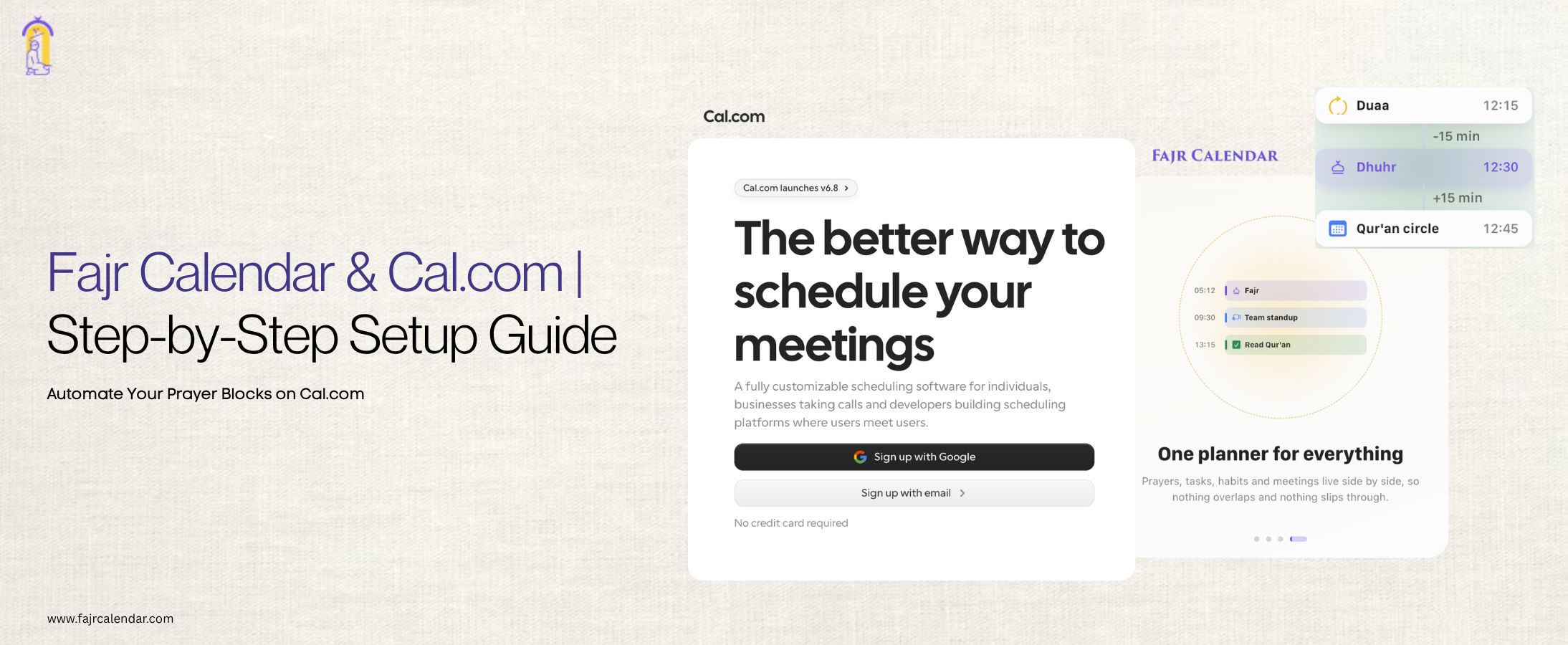
Cal.com handles your scheduling. Fajr Calendar handles your prayer times. Connect the two and clients can no longer book over Fajr, Dhuhr, Asr, Maghrib, or Isha. Here's how the integration works and how to set it up.
What Is Cal.com?
Cal.com is open-source scheduling software. Think of it as an alternative to Calendly: you set your availability, share a booking link, and clients pick a slot that works for both sides. Cal.com syncs with Google Calendar, Outlook, and other calendar tools to check for conflicts before a booking goes through.
The gap is that Cal.com doesn't know when you pray. It only blocks time you've already marked busy. If your prayer times aren't blocked somewhere Cal.com can read, a client can book straight through Asr.
What Fajr Calendar Does for Cal.com Users
Fajr Calendar calculates your prayer times based on your location and calculation method, then makes those times available as a feed. Cal.com reads that feed the same way it reads any other calendar, and it treats each prayer window as busy time. No manual blocking, no re-entering times every time the schedule shifts with the seasons.
Once connected, the flow looks like this: a client opens your booking page, prayer windows show as unavailable, and they pick a time around them.
You don't lift a finger after setup!
How to Connect Fajr Calendar to Cal.com
Step 1: Set Up Your Fajr Calendar Account
Go to fajrcalendar.com and create an account, or log in if you already have one.
Set your location and calculation method so your prayer times are accurate.
Step 2: Open the Connect Tab
From the left sidebar in Fajr Calendar, click Connect. You'll see Cal.com listed as an integration option, alongside Slack.

Step 3: Choose How to Connect
You have two paths: connect automatically with an API key or connect manually with a feed URL.
The API key route takes less setup. The manual route works if you'd rather not generate a key or if your Cal.com plan doesn't support one.
Option A: Auto-Connect With an API Key
An API key lets Fajr add the feed to Cal.com directly, so you don't copy or paste anything yourself.
Open Cal.com and go to Settings → Developer (or Security, depending on your plan).
Choose API Keys, then click Add.
Copy the key immediately. Cal.com only shows it once.
Paste it into the API key field in Fajr Calendar. The key starts with cal_ and is stored encrypted on our end.
That's it. Fajr handles the rest.
Option B: Connect Manually With a Feed URL
Use this path if you didn't generate an API key.
Copy your feed URL from the Cal.com card in Fajr Calendar.
In Cal.com, go to Settings → Calendars.
Find Check for Conflicts and click Add, then select ICS Feed.
Paste your feed URL and save.
Switch the Fajr Calendar toggle on.
That last toggle matters. Skip it, and Cal.com stores the feed without using it, and nothing gets blocked.
Narrowing the Block to Specific Event Types
By default, your prayer times apply to every event type using Cal.com's standard conflict checking. If you only want prayer times blocked for certain meeting types, say client calls but not internal team syncs, you can scope it down.
In Cal.com, open the event type you want to change.
Go to the Availability tab.
Under Checking for Conflicts, switch User to Event Type.
Tick Fajr Calendar, then save.
Repeat for each event type you want covered.
Other Fajr Calendar Integrations
Cal.com isn't the only place Fajr Calendar connects. You can also link it to Slack.
It automatically updates your Slack status during prayer breaks, sends timely prayer notifications, includes a Hadith or Ayah with reminders, and helps adapt meeting schedules around prayer times.
Same idea: set it up once in the Connect tab, and Fajr keeps the rest current in the background.

FAQs
Do I need a paid Cal.com plan to use this integration?
No. The manual ICS feed method works on any Cal.com plan. The API key method requires developer/API access, which is available on most plans, but check your specific tier if the option isn't visible.
Will this block time on my public booking page or just internally?
It blocks time on your public booking page. Once the feed is active and the toggle is on, clients see those windows as unavailable, exactly like any other busy slot.
What happens if my prayer times change with the season?
Fajr Calendar recalculates times automatically based on your location and method. Since Cal.com reads the live feed rather than a fixed list, your blocked times update without any action from you.
Can I unblock a single prayer time for one day, like if I need to move a meeting?
Not through this integration directly. You'd need to manually adjust availability in Cal.com for that specific day, since the feed reflects your standard calculated times.
Does this work if I use multiple calculation methods or locations, like when traveling?
Fajr Calendar uses whatever location and method are active on your account at the time. Update your location in Fajr Calendar before you travel, and the feed syncs to Cal.com automatically.
Is my Cal.com API key secure?
Yes. The key is stored encrypted and used only to write the calendar feed to your Cal.com account. Fajr Calendar doesn't use it for anything else.
Can I disconnect the integration later?
Yes. Remove the Fajr Calendar feed from Cal.com's Calendars settings, or revoke the API key from Cal.com's Developer settings. Either action stops new bookings from checking against your prayer times.
Ready to stop losing prayer time to back-to-back bookings? Set up Fajr Calendar and connect it to Cal.com in a few minutes.